# PaperTodo
**Repository Path**: gathon/PaperTodo
## Basic Information
- **Project Name**: PaperTodo
- **Description**: 导入snownico0722/PaperTodo项目
- **Primary Language**: C#
- **License**: Not specified
- **Default Branch**: main
- **Homepage**: None
- **GVP Project**: No
## Statistics
- **Stars**: 0
- **Forks**: 0
- **Created**: 2026-07-09
- **Last Updated**: 2026-07-09
## Categories & Tags
**Categories**: Uncategorized
**Tags**: None
## README
# PaperTodo · A Sheet of Paper
**A few quiet, useful, unobtrusive pieces of paper on your desktop.**
A minimal Windows desktop sticky-note app built with native WPF. No main window, no account, no manager.
   
**Language: [中文](README.md) | English**
---
## Preview
| Papers |
| :---: |
|  |
| Markdown Preview |
| :---: |
|
 |
| Capsule Mode | Advanced Capsules |
| :---: | :---: |
|  |  |
| Papers can collapse into small capsules to save desktop space. | Collapsed capsules dock to screen edges and slide out on hover. |
---
## Philosophy
- **Paper first** - Each paper is an independent borderless window that lives directly on your desktop. There is no central dashboard.
- **Ready immediately** - Write when you need to, check things off when done. Position, size, pin state, and content are saved automatically.
- **Not a manager** - No categories, tags, search, archive, sync, accounts, statistics, or reminders.
- **Native implementation** - Built with WPF. No WebView, Tauri, or Electron, and no MSIX / Store / AppX constraints.
- **Interaction first** - Lightweight does not only mean low resource usage. It also means short workflows, low cognitive load, and little visual noise.
> No unnecessary interaction layers. No unnecessary visual focus.
---
## Features
- **Multiple independent papers** - Each paper is its own window.
- **One app, two paper types**:
- **Todo paper**: one item per line. Check, edit, delete, and clear completed items.
- **Note paper**: plain text with lightweight Markdown-style highlighting and three Markdown rendering modes.
- **Capsule mode** enabled by default - Click the top-right control to collapse a paper into a pinned mini capsule, saving desktop space and bringing it back when needed.
- **Auto-docked capsules** enabled by default - Collapsed capsules dock to screen edges; multi-monitor layouts are supported, and individual capsules can be dragged to another side or monitor.
- **Minimal interaction layers** - Fast, direct, lightweight controls.
- **Script capsules** - Start a note with `!p` / `!power` to quickly run scripts from the note and make full use of the capsule system.
- **Link notes to todos** - Drag a note onto a todo item to link it, then open the linked note directly from that item.
- **Theme switching** - Follow system, light, and dark modes.
- **Four color schemes** - Warm Paper, Ink, Forest, and Rosy.
- **Multi-language UI** - Chinese, English, Japanese, and Korean, selected from the system UI language.
- **Startup at login** - Run PaperTodo when Windows starts.
- **Custom tray icon** - If `PaperTodo.ico` exists next to the executable, it is used instead of the embedded icon.
- **Data safety** - Auto-saves to `data.json` next to the app and keeps `data.backup.json`; temporary writes reduce corruption risk on abnormal exit.
- **Native paper experience** - Built with native WPF controls for a smooth and efficient desktop feel.
- **Command-line friendly** - Show, hide, toggle, and create papers from startup arguments, making it easy to call PaperTodo from hotkey tools or scripts.
---
## Paper Features And Manual
## Paper Window
**Basic actions**
- **Move and resize**
- **Pin on top**: the type icon in the top-left corner is also the pin toggle.
- **Create**: create todo and note papers from the top-right buttons.
- **Open with external editor**: click the `MD` button to open the current note in an external editor. The suffix can be customized in settings.
- **Set title**: paper titles can be customized.
**Capsules And Edge Docking**
- **Collapsed capsules**: Papers can collapse into pinned mini capsules to save desktop space and reopen quickly.
- **Auto docking**: Collapsed capsules can dock to screen edges and slide out on hover.
- **Multi-screen queues**: Drag an individual edge capsule to the left side, right side, or another monitor; it joins the matching edge queue when released.
- **Collapse all**: The master capsule can collapse or expand all edge capsules, and dragging it adjusts that queue's starting height.
---
### Todo
Good for today's tasks, temporary items, and small desktop checklists.
**Basic actions**
- **Check as done**
- **Add item**
- **Drag to reorder** - Hold the `≡` handle on the right and drag up or down.
- **Drag to delete** - Drag an item to the bottom delete area.
- **Paste multiple lines** - Lines are split into separate todo items, with common list prefixes cleaned up.
- **Visual size** - Choose Small / Medium / Large / Extra Large todo item sizes in settings.
- **Undo / redo** - `Ctrl+Z` / `Ctrl+Y`
**Linked notes**: Drag a note from its title bar onto a todo item to create a link. The todo item then shows an entry point to open the linked note. When "show linked note names" is enabled, the note title is shown next to the item.
---
### Note Paper
Note paper is not a full Markdown editor. It only helps a sheet of paper stay a little clearer.
**Formatting shortcuts**
- `Ctrl+B` - Bold.
- `Ctrl+I` - Italic.
- `Ctrl+K` - Insert link.
- `Ctrl+Z` / `Ctrl+Y` - Undo / redo.
- `Ctrl + mouse wheel` - Zoom note text in 10% steps. Click the percentage indicator in the bottom-right corner to reset to 100%.
**Supported Markdown**: headings `#` to `######`, bold `**text**`, italic `*text*`, strikethrough `~~text~~`, unordered lists `-`, ordered lists `1.`, block quotes `>`, horizontal rules `---` / `***` / `___`, inline code `` `code` ``, fenced code blocks, links `[label](URL)`, and a small set of single-line inline HTML tags (`b/strong/i/em/s/del/u/code/a href`).
**Not supported**: images, tables, attachments, embedded content, block-level HTML, or complex block editing.
**External editing**: The `MD` button in the title bar opens the current note as a temporary `.md` file with the system default editor.
**Custom suffixes**: The `MD` button can use system-associated suffixes such as `.txt`, `.html`, or `.bat`; Windows handles the temporary file with the associated app.
**Script capsules**: Put `!p` / `!power` on the first line of a note, and the remaining content runs as a PowerShell script. When collapsed, the note shows a lightning capsule; left-click runs it, and right-click opens the paper for editing. Use `!pf` / `!powerf` to send the script to a persistent PowerShell process.
> Only run local scripts you trust. Do not run script content from unknown sources.
---
## Settings
- **Appearance** - Theme, color scheme, todo visual size, title length limit, normal tooltips, and animations.
- **Fullscreen topmost mode** - When an external fullscreen window is detected, choose whether papers and edge capsules temporarily step back or stay above fullscreen content.
- **Todo and notes** - Linked notes for todos, linked note names, and whether linked notes appear as capsules.
- **Title bar buttons** - Hide the new todo, new note, or external open button separately.
- **External open** - Customize the temporary file suffix used when opening the current note with the system default editor.
- **Script capsules** - Prefer PowerShell 7, hide script run windows, and enable a persistent PowerShell process.
- **Capsules** - Capsule mode, auto docking, multi-screen left/right queues, keeping the edge capsule when expanded, and the collapse-all master capsule.
## Tray Entry
PaperTodo has no main window. The tray icon is the only global entry point.
### Tray Actions
- **Double-click tray icon** - Show and bring back all papers.
- **Right-click tray icon** - Open the menu. The current version is shown at the top.
- **Settings** - Open the settings window for theme, color scheme, Markdown parsing, startup, title bar buttons, linked notes, and capsule options.
- **Delete paper** - Click the `×` on the right side of a paper row, then choose Confirm or Cancel.
### Startup Arguments
These can be used from external hotkey tools, scripts, or Windows shortcuts:
```text
PaperTodo.exe --show Show and bring back all papers
PaperTodo.exe --hide Hide all papers while keeping the app running in the tray
PaperTodo.exe --toggle Hide all if any paper is visible; otherwise show all
PaperTodo.exe --new-todo Create a new todo paper
PaperTodo.exe --new-note Create a new note paper
PaperTodo.exe --exit Save state and exit
```
The `--` prefix is optional, and a few aliases are supported, such as `open` for `show` and `quit` for `exit`.
If PaperTodo is already running, starting it again with arguments will not create a second process. The command is forwarded to the existing instance. Starting it again without arguments shows and brings back all papers.
---
## Data And Files
Data is stored in the application directory:
```text
PaperTodo/
├─ PaperTodo.exe
├─ data.json Main data file
├─ data.backup.json Backup written before saving; used when the main file is damaged
└─ PaperTodo.ico Optional custom tray icon, used before the embedded icon
```
> Warning: Do not place the app in a read-only directory, or it may be unable to save data.
---
## Download And Verification
GitHub Actions builds two Windows x64 single-file executables and publishes them as Release assets:
- **`...-self-contained-compressed.exe`** - Self-contained with the .NET Runtime, single file, ReadyToRun + compression.
- **`...-no-runtime-uncompressed.exe`** - Framework-dependent no-runtime single file, uncompressed.
Each build includes `SHA256SUMS.txt` and Sigstore signatures (`.sig` / `.crt`).
Release notes are automatically extracted from the matching version section in [`CHANGELOG.md`](CHANGELOG.md).
---
## Build And Dependencies
```powershell
dotnet build -c Release
```
Local packaging only produces the no-runtime single file; cloud Releases publish both the self-contained compressed build and the no-runtime build.
- **Windows / .NET 10 / WPF** - Runtime and UI framework.
- **[AvalonEdit](https://github.com/icsharpcode/AvalonEdit)** - Note editing and lightweight Markdown highlighting.
- **[Hardcodet.NotifyIcon.Wpf](https://github.com/hardcodet/wpf-notifyicon)** - Tray icon and menu.
## Thanks
Thanks to the [linux.do](https://linux.do/) community.
---
## Star History
[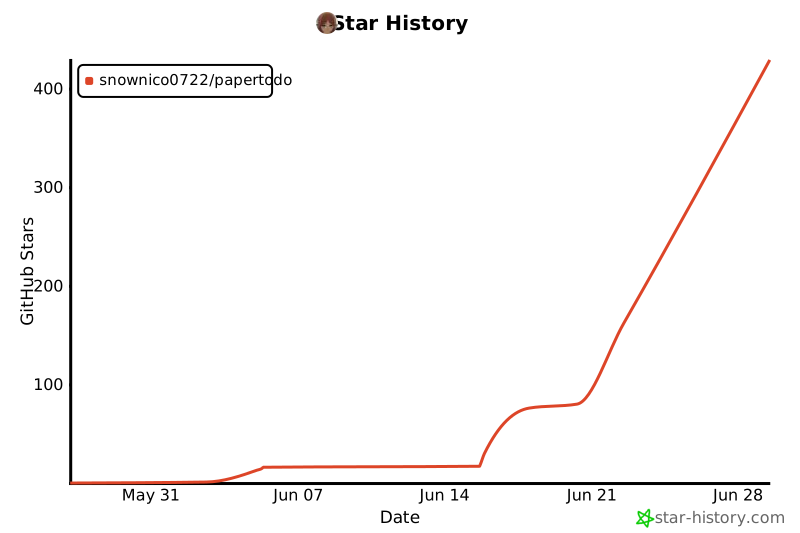](https://star-history.com/#snownico0722/PaperTodo&Date)